
Purpose of the tutorial
HCM is a powerful tool designed for generating data files and reports by extracting data in bulk from Oracle HCM Cloud.
HCM Extracts Types
| Extract Type | Purpose |
| Archive Retrieval | Use for reports based on permanently archived data, for example, payslip. |
| Benefit Carrier | Use for providing data to third party benefits service providers. |
| Full Profile | Use for complete employee and payroll data archives. |
| HR Archive | Use for all HR archives. |
| Large Object | Use for all large data objects. |
| Recruiting Archive | Use for all recruiting archives. |
| Payroll Interface | Use for providing data to third party payroll service providers. |
| Other Payroll Archive | Use for all payroll archives. |
Most probably we only use HR Archive and Full Profile
Navigation to reach the HCM Extacts -> My Client Groups -> Data Exchange ->HCM Extracts
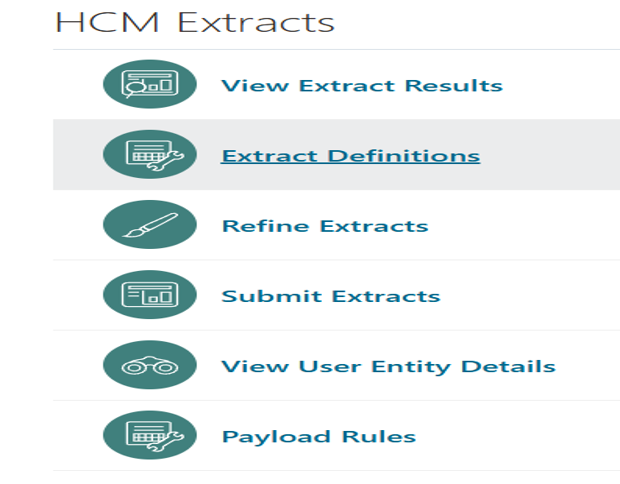
Navigation to create HCM Extracts: -> Extract Defination->Create New->HR Archive
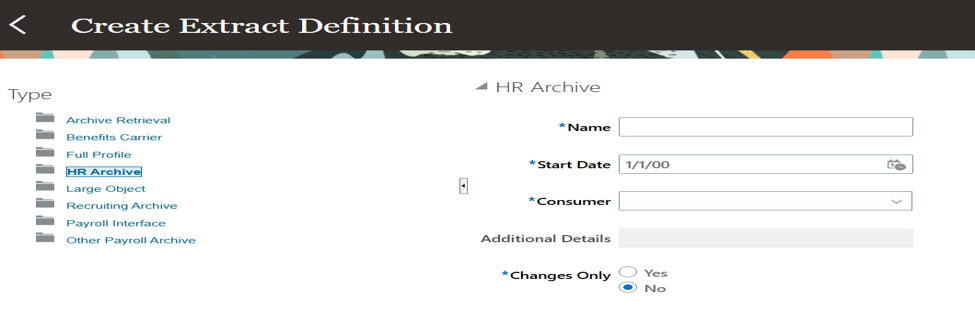
Our HCM Extract has now been created. Next, we will add the Data Group and other required components. Open the newly created Extract to proceed.
- Data Groups: – Extract data groups represent a business area
- Extract Records: – Extract records represent a grouping of related data or a physical collection of all fields required in the extract
- Threading Database Item: – A threading database item is a unique identifier for a given user entity to uniquely identify an extracted record

Define (Identify the business requirement for the HCM Extracts.)
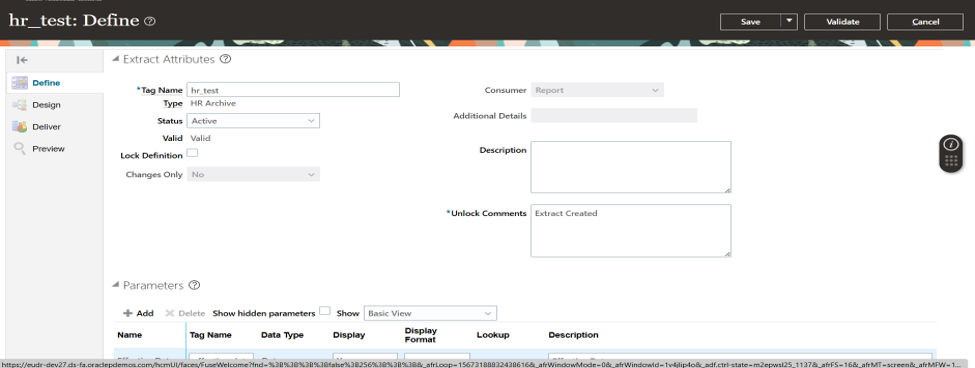
Design (Create the HCM Extracts using the Extract Definitions tool.)
First we Create Parent Data Group – data_group
Here, we need to provide the Name, User Entity, and Threading Database Item.
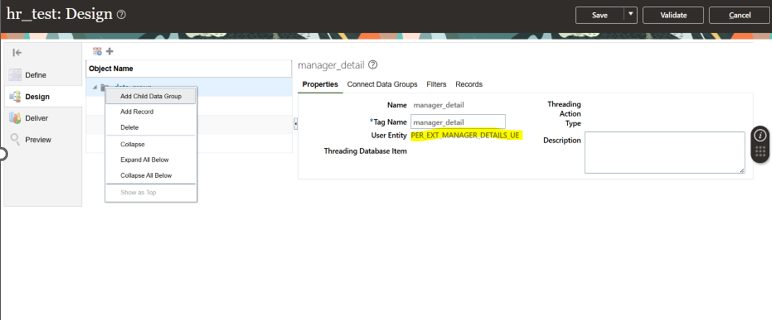
For the User Entity, select PER_EXT_PAY_EMPLOYEE_UE. This User Entity provides comprehensive employee-related information, including personal and assignment-related details.
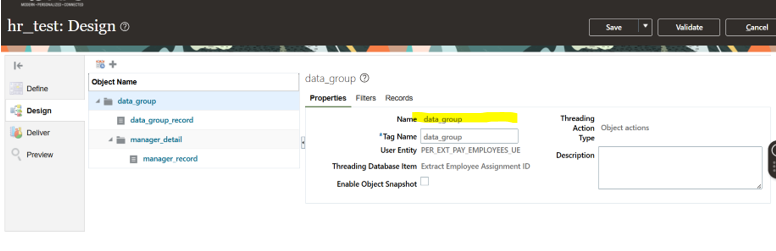
Now if we want to add any filter on the parent data group then go to -> Filters
In this example, we want to retrieve active employees. Therefore, add the following filter conditions:
Assignment Type: Employee
Assignment Status Type: Active
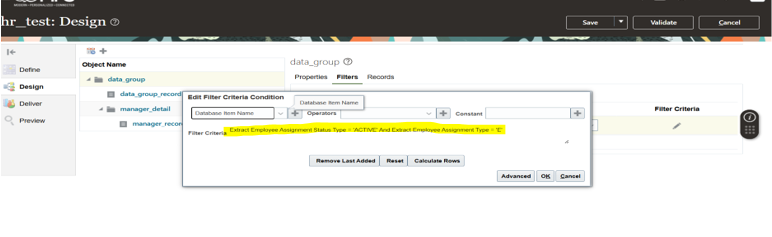
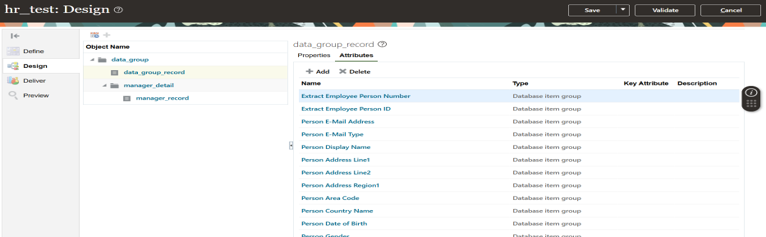
Next, create the data_group_record. Then, add the required attributes to the record by navigating to:
Data Group → Attributes → Add → Database Items
In this example, we have fetched the following employee details:
- Person Number
- Person ID
- Person Type
- Address
- Gender etc.
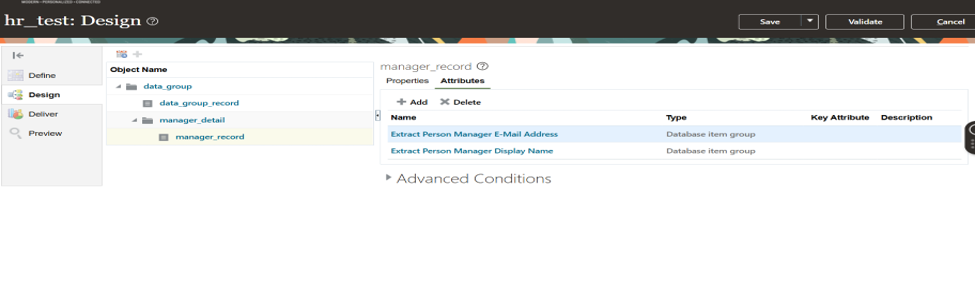
If you want to add a child object, right-click on the parent Data Group and select Add Child Data Group
For example, you can add manager_detail as a child Data Group under the parent Data Group.
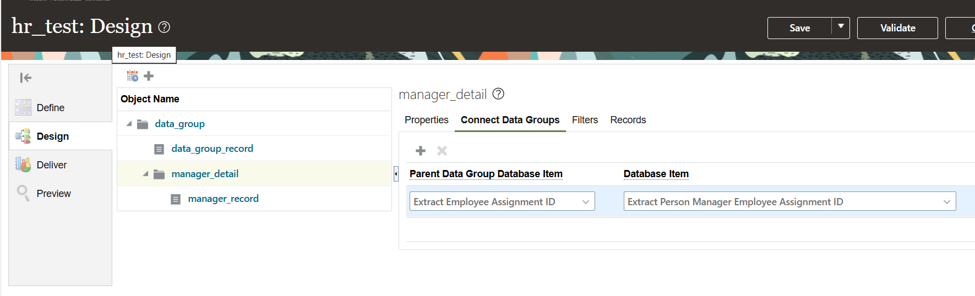
The child Data Group should be connected to the parent Data Group. To do this, select the parent Data Group and navigate to Connected Data Group.
In this example, the relationship is established using the following condition:
Employee Assignment ID = Manager Employee Assignment ID
Add the required attributes that you want to retrieve in the child Data Group.
Deliver (Schedule and Run the Extract)
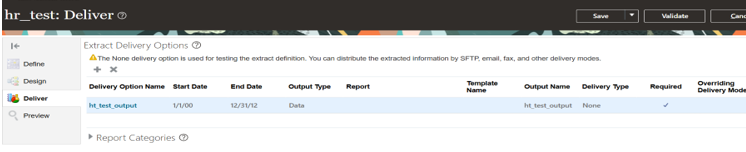
In this step, we need to create a Delivery Option. Navigate to Deliver → Create the required Delivery Option.Oracle HCM Extracts provides different delivery types, such as:
- None
- Inbound Interface
- FTP
- Document of Records (DOR) etc.
For this example, select the Delivery Type as None. With this delivery type, the Extract will generate an XML data file, which can be downloaded after the Extract is submitted and completed.
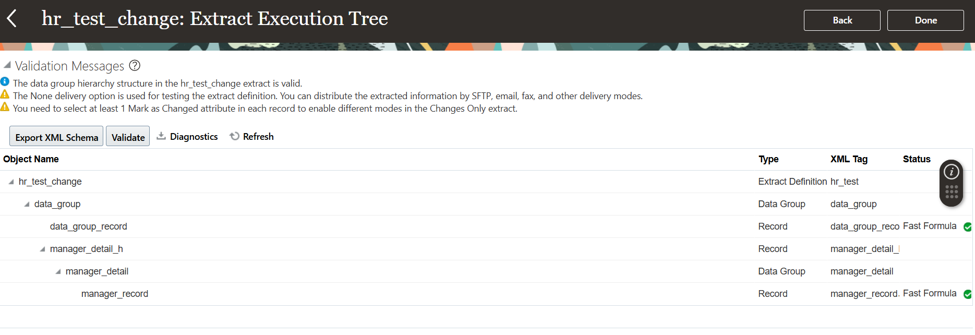
Now, we need to validate our Extract. Navigate to Validate and click Refresh repeatedly until all validation checks display green ticks.
Now, the final step is to submit the Extract. Click Submit using the file-like icon to submit and run the Extract.
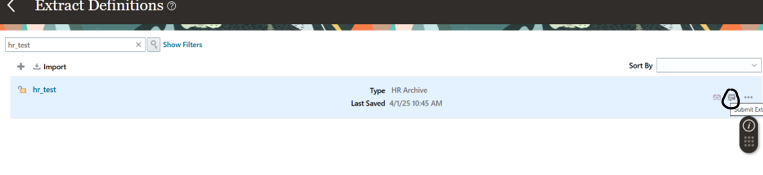
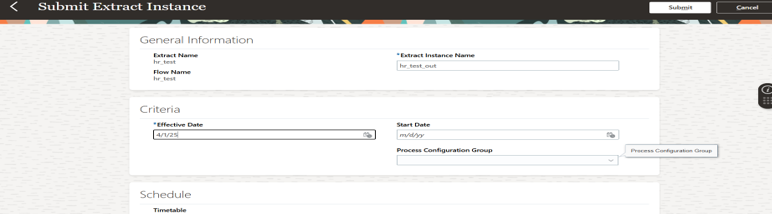
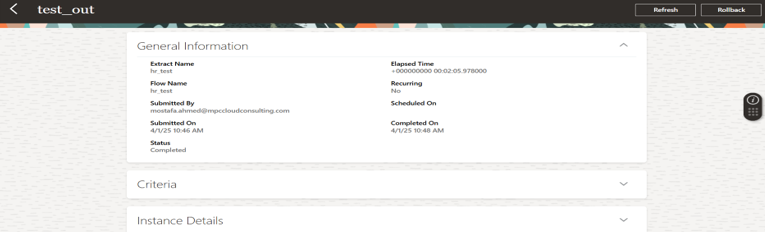
After submitting the Extract, an XML file will be generated, which you can download for further use or validation.
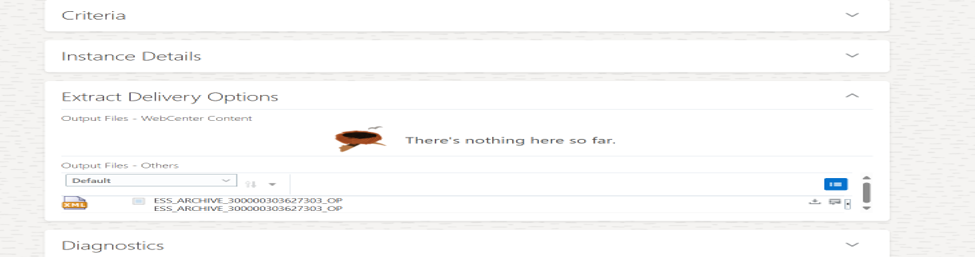
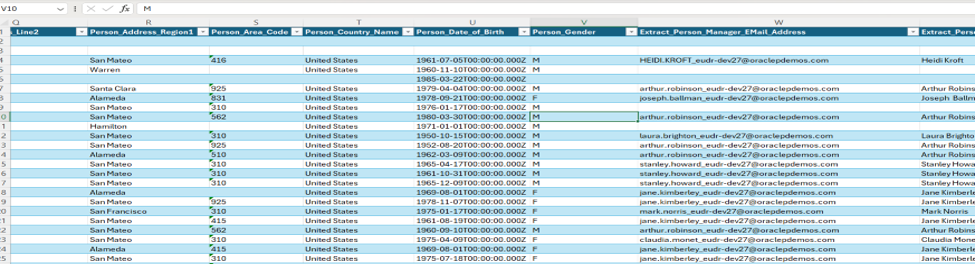
Output Download the generated XML file and open it in Microsoft Excel to view and verify the Extract data.
Pingback: HCM Extracts - Changed Attributes - fusionhcmtechnical