
Purpose of the tutorial
This document explains the process for creating and using an HCM Spreadsheet Data Loader (HSDL) template to update the Work Email address of an existing employee in Oracle Fusion HCM.
The HSDL template is specifically designed to update the Work Email address when the Work Email cannot be updated through the Oracle Fusion HCM user interface.
When attempting to delete or replace the existing Work Email through the UI, the system display the following error:
“You cannot delete an email of type Work Email.”
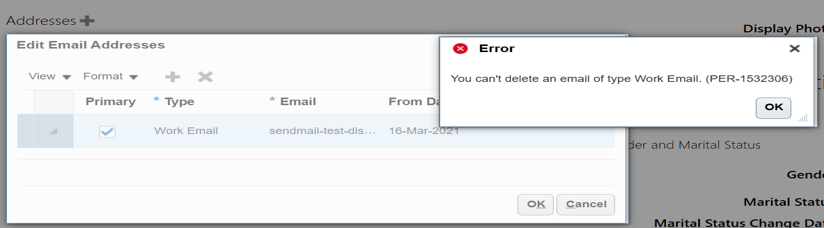
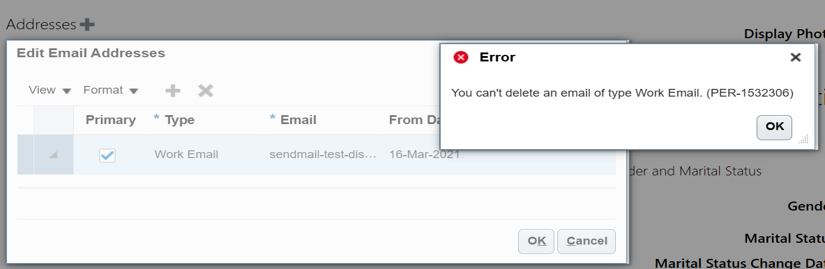
In such cases, the Work Email can be updated using the HSDL template or HDL .
Required Information(The Update Work Email HSDL template requires only two fields:)
- Person Number
- Updated Email Address
The template is specifically designed to update the employee’s existing Work Email address.
Required Fields
| Field | Example | Purpose |
| Person Number | 100123 | Identifies the employee |
| Email Address | employee@company.com | New Work Email address |
Important Note
This template is intended for updating an existing Work Email address. It is not intended to create a new email address.
Therefore, the employee must already have a Work Email record in the system.
HSDL Template Creation
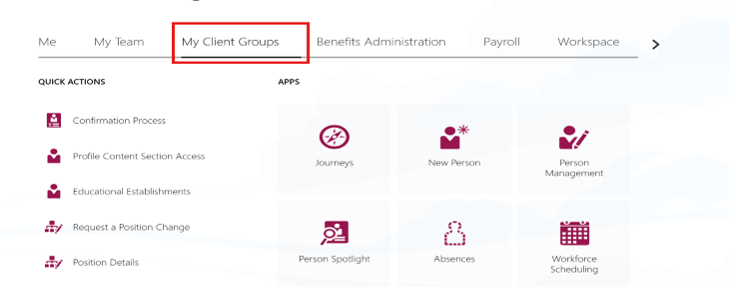
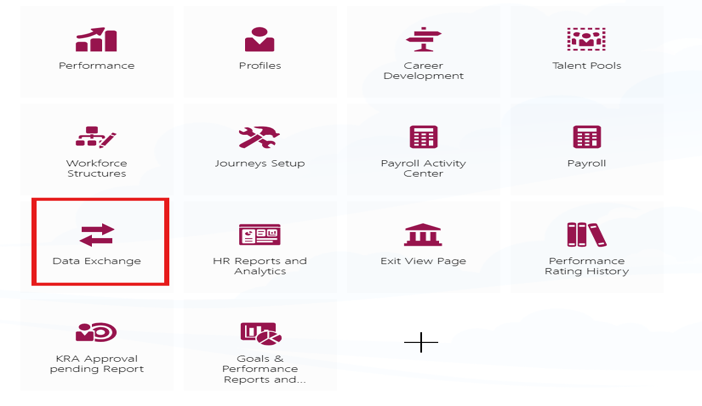
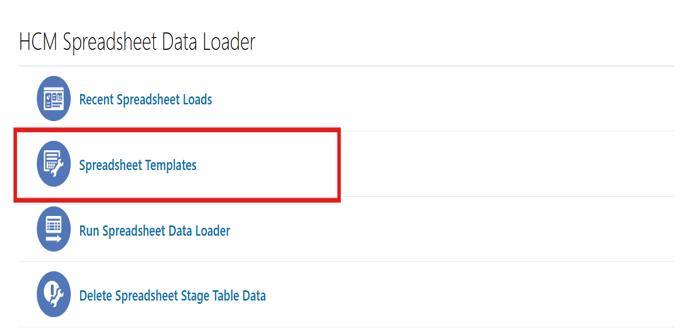
Navigate to: My Client Groups → Data Exchange → HCM Spreadsheet Data Loader →Spreadsheet Template Create a new spreadsheet template for the appropriate business object related to Email Addresses.
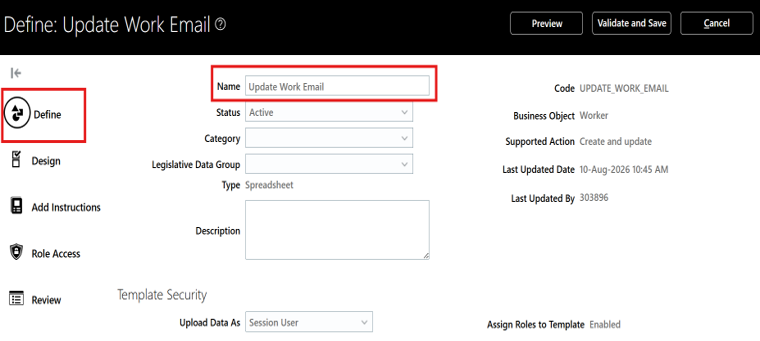
The HSDL template created for this process is: Update Work Email.
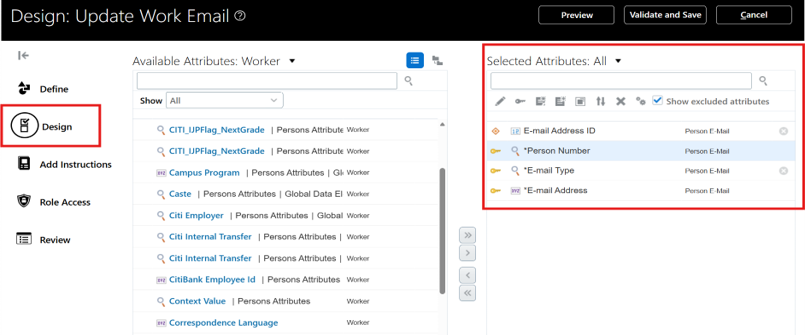
In the Design section, the following attributes are configured to update the employee’s Work Email:
- Email Address ID
- Email Address Type
- Email Address
- Person Number
Although these attributes are used as part of the underlying configuration, only the following two fields are exposed to the user in the spreadsheet:
- Person Number
- Email Address
Attribute Details
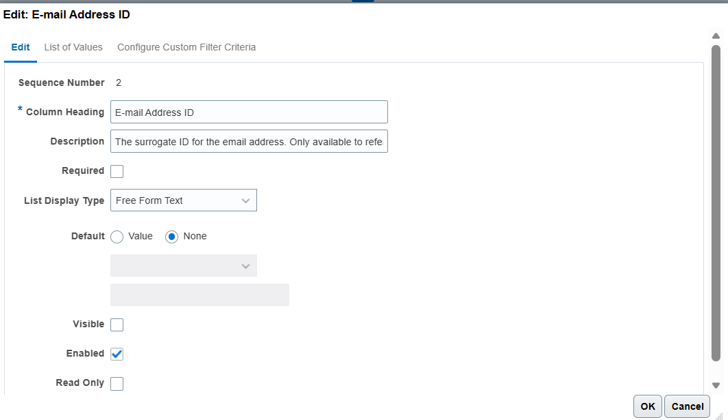
Email Address ID
The Email Address ID identifies the existing email record that needs to be updated.
The Email Address ID is retrieved automatically based on the Person Number provided by the user.
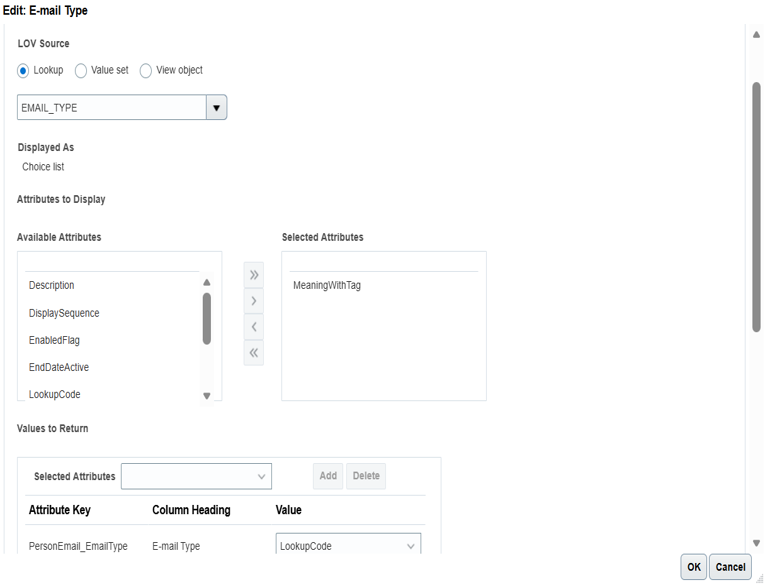
Email Address Type
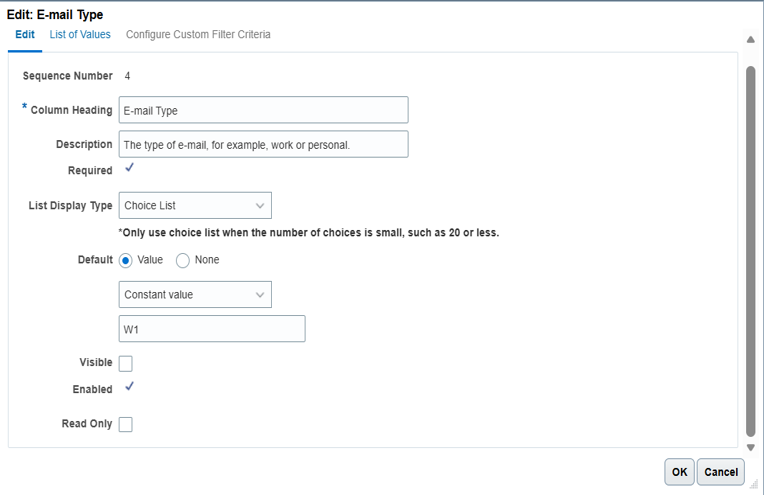
The Email Address Type identifies the type of email being updated. For this template, the email type is configured as Work Email.
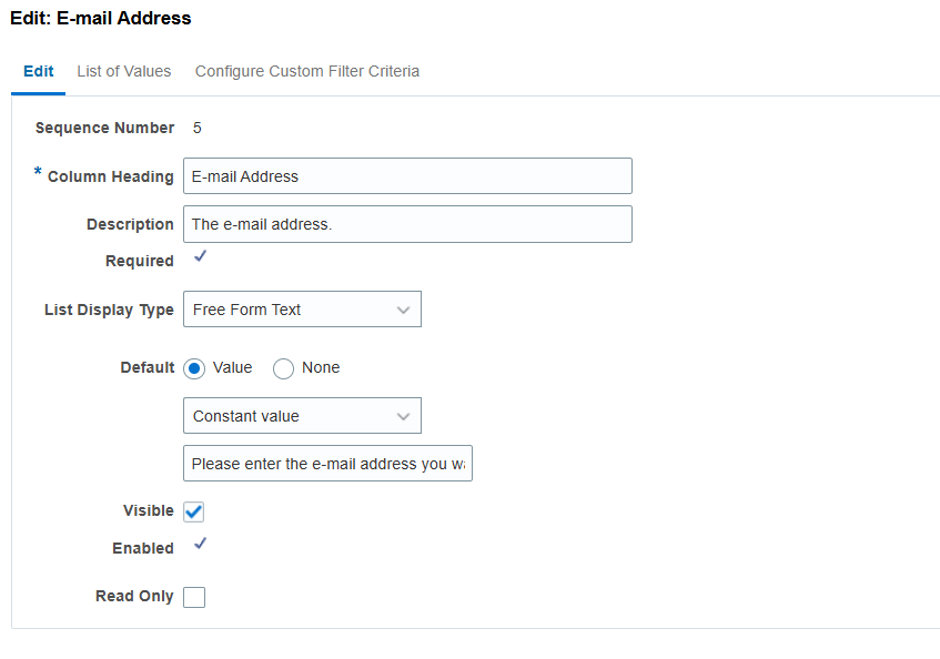
Email Address
This is the field where the user enters the employee’s new Work Email address.
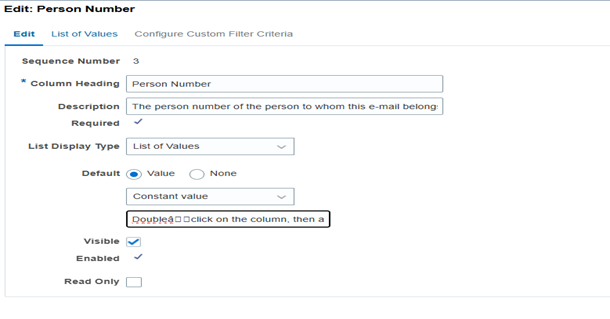
Person Number
The Person Number is used to identify the employee whose Work Email needs to be updated.
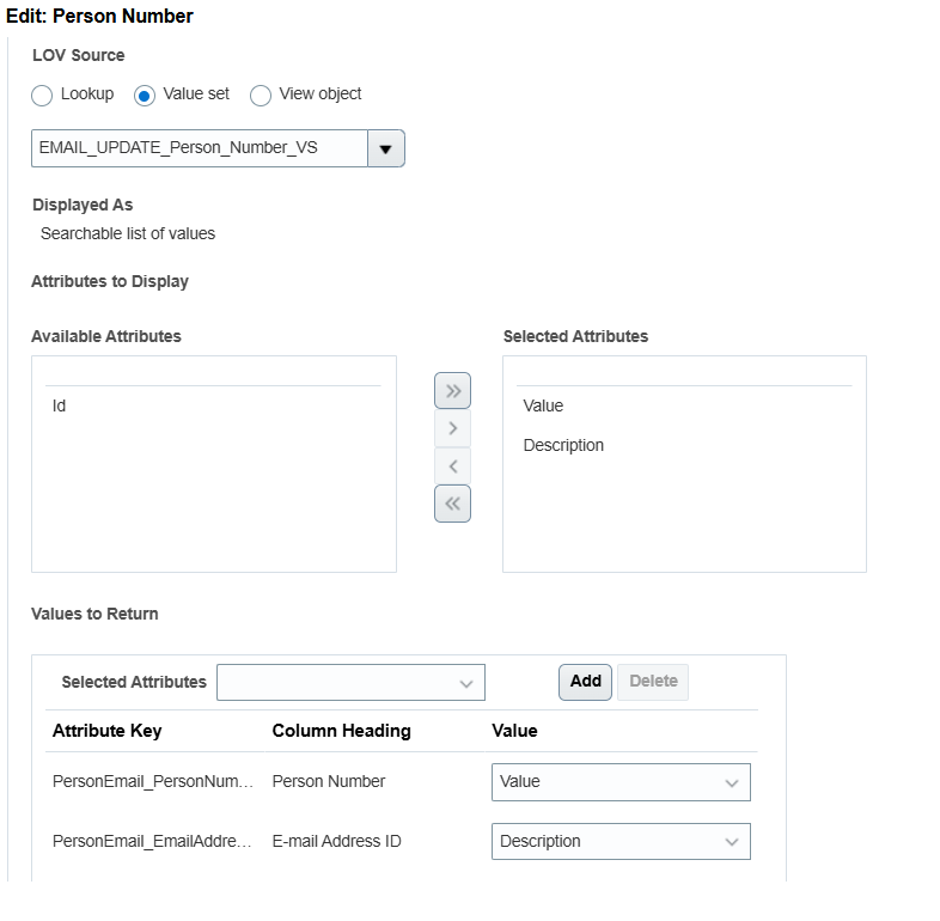
A value set (EMAIL_UPDATE_Person_Number_VS)has been created for the Person Number attribute.
The purpose of this value set is to retrieve the Email Address ID corresponding to the Person Number entered by the user.
When the user enters a Person Number in the spreadsheet and opens the value selection, the corresponding email record is displayed.
This ensures that the correct existing Work Email record is selected for the employee.
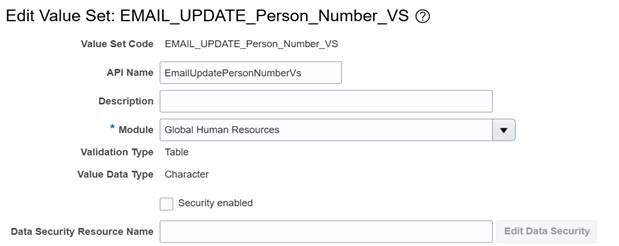
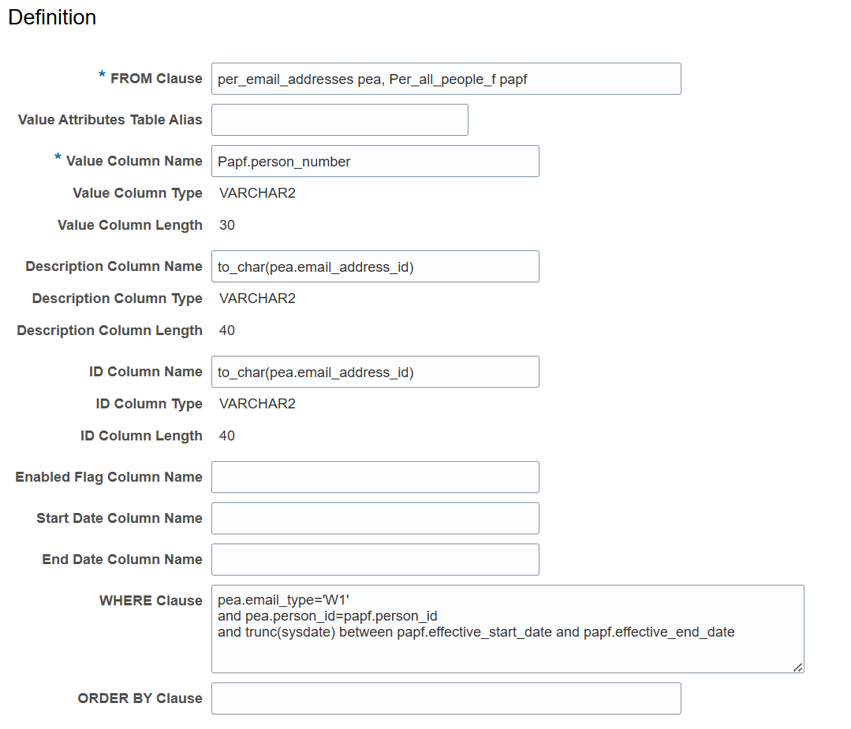
The Design section of the HSDL template is configured to ensure that the user only needs to provide the required information.
The user will enter:
Person Number → Updated Email Address
The remaining required information, such as the existing Email Address ID and Email Address Type, is handled through the template configuration.
In the Instructions section, instructions have been added to explain to the user how the template should be used.
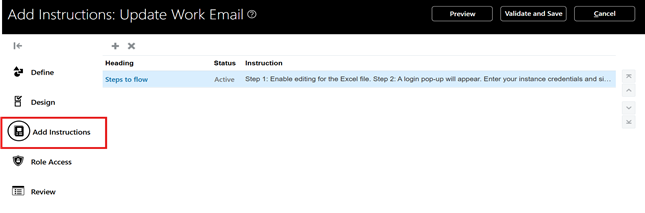
The instructions should clearly mention that:
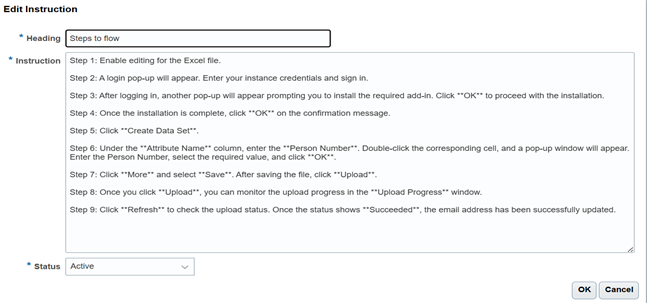
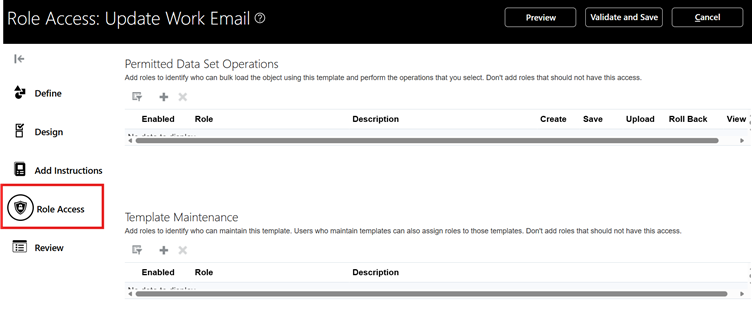
The Role Access section is used to control which users are allowed to access and use the HSDL template.
Access to the template can be restricted based on the required roles.
This ensures that only authorized users can use the Update Work Email template to update employee email information.
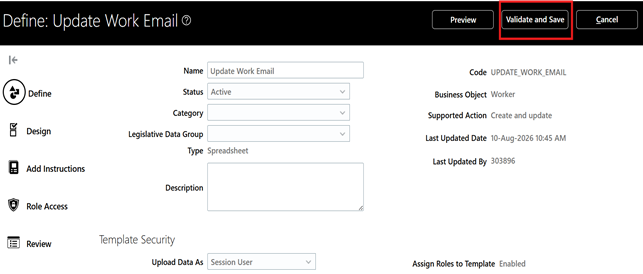
Once all the required configurations have been completed:
- Review the template configuration.
- Click Validate.
- Resolve any validation errors, if displayed.
- Click Save.
Once the validation is successful and the template is saved, the HSDL template is ready to use.
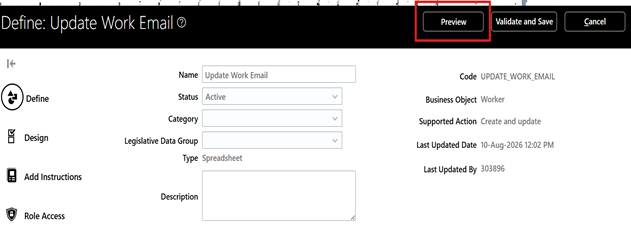
After saving the template:
- Click Preview.
- The system will prompt you to download the Excel spreadsheet.
- Download the Excel file.
- Open the downloaded Excel file.
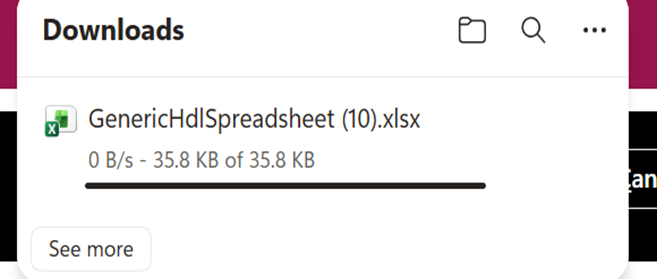
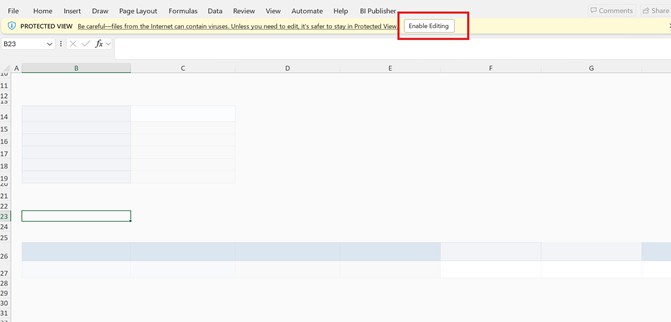
Click on the Enable editing
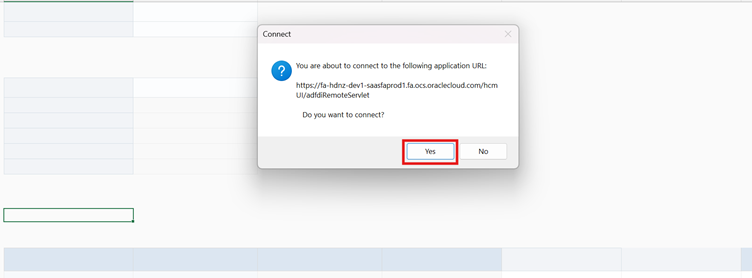
It will ask user to connect with Oracle ADFDI, Click on Yes.
Now Login with user credentials then click on Create Data Set under Spreadsheet loader Tab.
Note:
Oracle ADFDI must be installed on the user’s system to use the spreadsheet loader. If ADFDI is not installed, the system will prompt the user to install it.
If prompted to install Oracle ADFDI:
- Follow the installation instructions.
- Complete the installation.
- Click OK.
- Reopen or reconnect the spreadsheet if required.
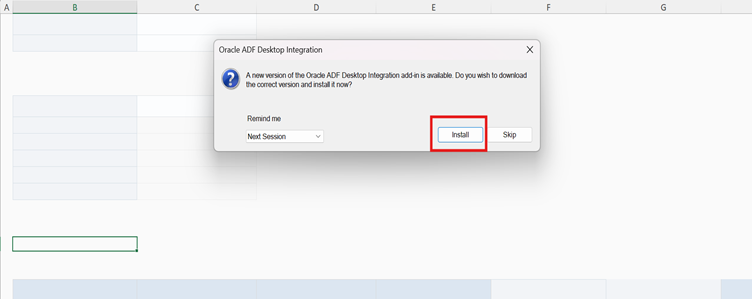
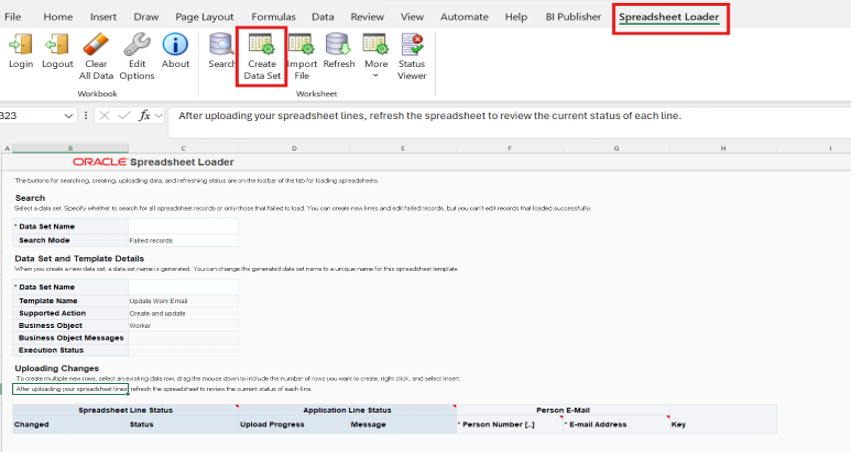
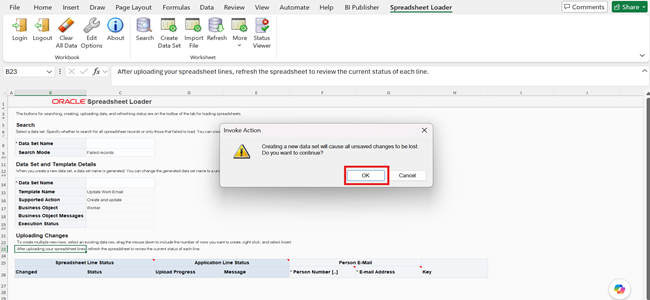
Click on Ok
Now fill the required data
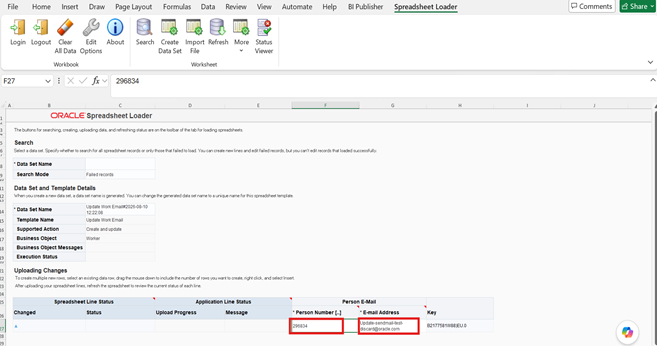
There is one additional step that must be completed after entering the Person Number.
- Enter the Person Number in the Person Number column.
- Double-click the Person Number cell/column.
- A pop-up window will appear.
- Enter the Person Number in the value field.
- The corresponding Email Address ID will be displayed in the description/results.
- Select the appropriate row.
- Click OK.
This step ensures that the existing Work Email record associated with the employee is selected for the update
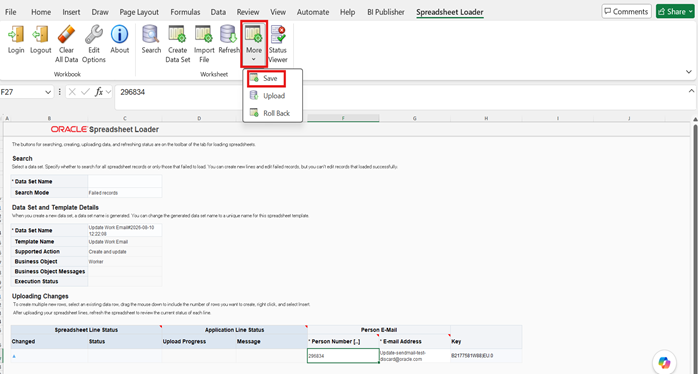
Now click on More > Click on Save >Click on OK.
Click on refresh and it will appear -ready to process.
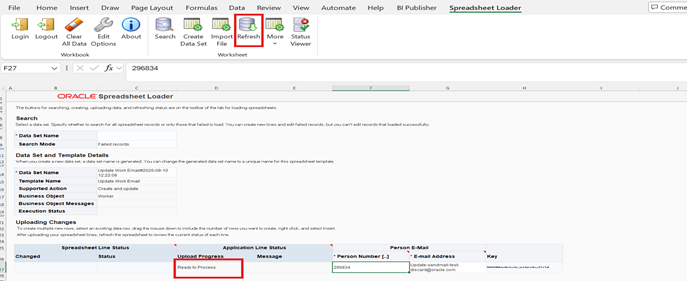
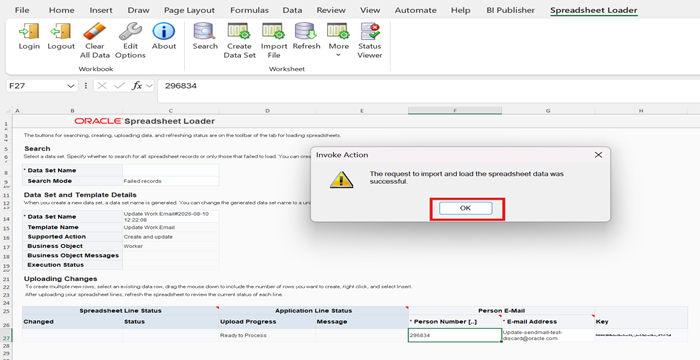
Now Click on More > Upload
Click Ok
Now Go to Application and click on the Recent Spreadsheet Loads under HCM Spreadsheet Data Loader
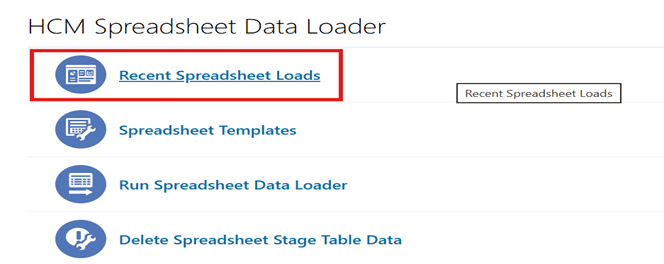
You Can see the Upload Success
After the HSDL upload is successful, verify the employee’s Work Email in Oracle Fusion HCM.
Navigate to the employee’s person record and check the Email section.
Before HSDL Upload
After HSDL Upload
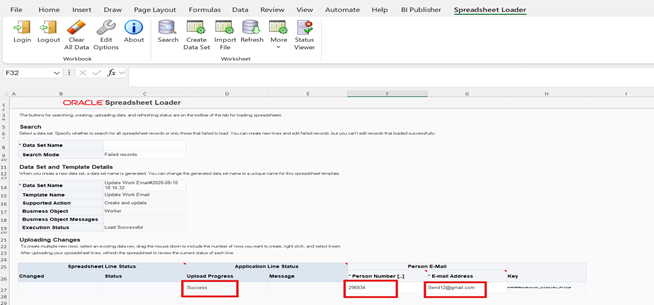
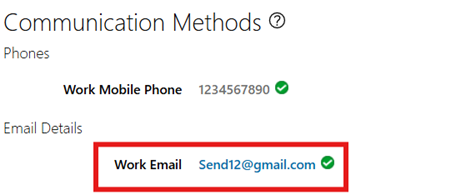
Confirm that the Work Email has been updated to the new email address provided in the HSDL spreadsheet.